


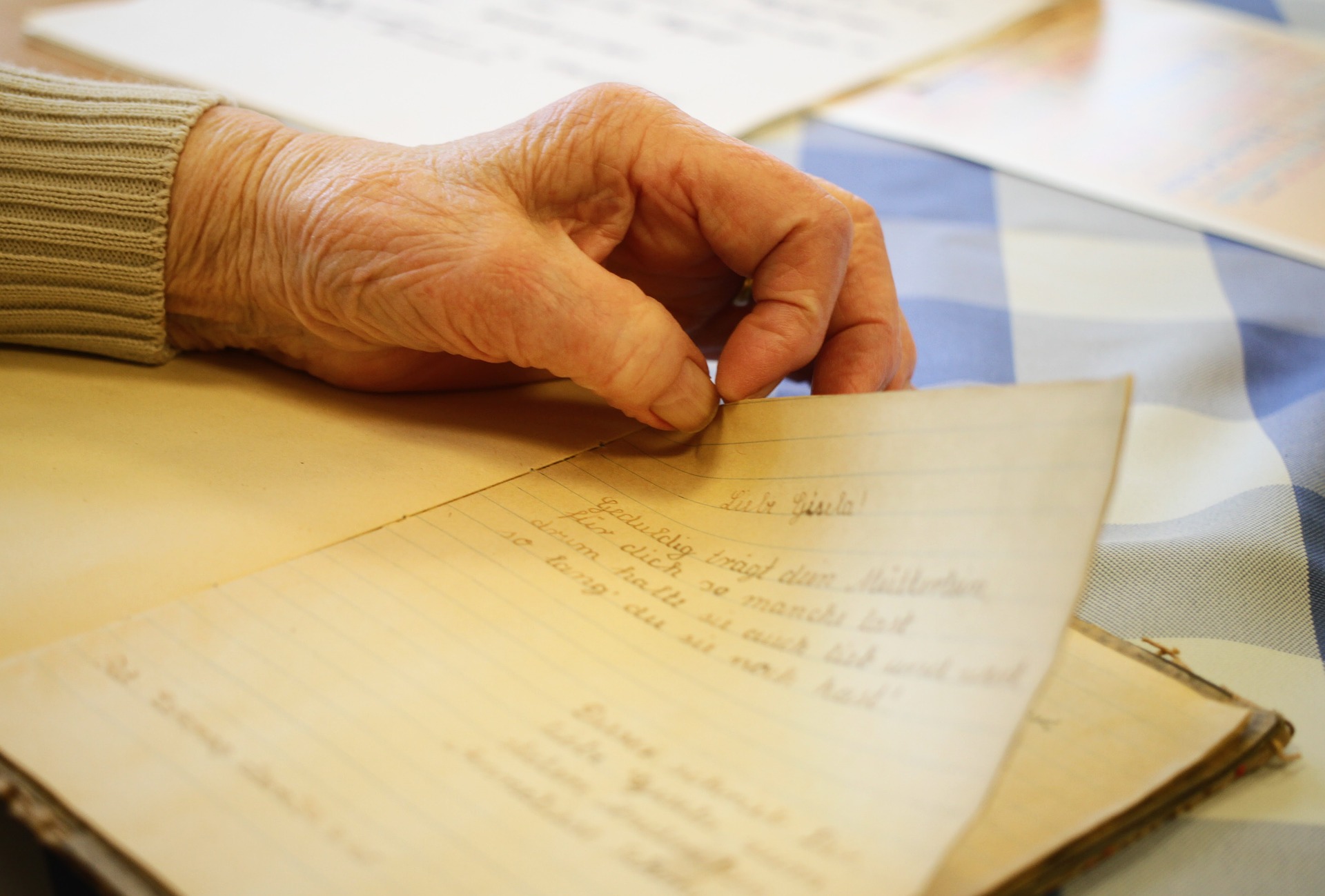
A family album holds decades of moments in one place, birthdays, holidays, ordinary afternoons that turned out to matter more than anyone realized at the time. Flipping through it is still a passive experience, though, since every page stays exactly as still as the last. Image to video tools give a family album a new way to be experienced, letting a handful of its photos gain a small amount of motion instead of sitting flat on the page. Dreamina, running on its most advanced video generation model, Seedance 2.5, makes it possible to turn a favorite page into something a whole family can gather around and actually watch.

Contents
- 1 Why an album page deserves more than a glance
- 2 What makes an animated album page feel meaningful
- 3 Turning an album photo into video with Dreamina
- 4 What Seedance 2.5 brings to family photo motion
- 5 Choosing which page actually deserves this treatment
- 6 Writing prompts that respect who’s actually in the photo
- 7 Choosing the right pace for a family moment
- 8 A few habits worth avoiding
- 9 Where these family videos tend to get used
Why an album page deserves more than a glance
Most people flip past family album pages quickly, pausing only on the photos that catch their eye. Motion changes that rhythm entirely, a single animated photo on a page tends to hold attention long enough for someone to actually look closely at a moment they might have otherwise skimmed past.
What makes an animated album page feel meaningful
A few things tend to separate a family video that feels warm from one that feels like a gimmick. The motion should stay small and true to the photo, not exaggerated or theatrical. The relationships and expressions in the photo need to stay recognizable, since a family will notice immediately if something feels slightly off. And the pace should stay unhurried, giving each face and gesture room to actually register.
Turning an album photo into video with Dreamina
Step 1: Upload your photo and describe the moment
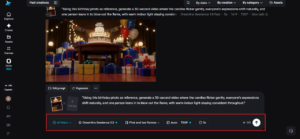
Open Dreamina and go to the “AI Video” section, then use “Add reference image” to bring in your album photo. From there, describe the small motion you want.
Here’s an example for a 30-second clip: “Using this birthday photo as reference, generate a 30-second video where the candles flicker gently, everyone’s expressions shift naturally, and one person leans in to blow out the flame, with warm indoor light staying consistent throughout.”

Step 2: Generate with Seedance 2.5
Pick the Seedance 2.5 model, choose your video length, then select an aspect ratio, 16:9 for a shared slideshow, 9:16 if it’s meant for a phone or social share. Tap Dreamina’s generate icon and let the memory come alive.
Step 3: Refine and export the finished piece
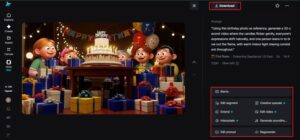
Run it through Dreamina’s editing tools first, Upscale sharpens fine detail across faces and objects, Generate Soundtrack adds a gentle layer if it fits the mood, then export and share it with the family who’ll recognize every face in it.
What Seedance 2.5 brings to family photo motion
Seedance 2.5, Dreamina’s most advanced video generation model, handles the kind of multi-person, emotionally careful motion family content depends on.
Every face staying recognizably itself
Reference handling preserves the exact features and expressions of everyone in the photo, which matters enormously in a group shot where even a small shift could make someone look like a stranger.
No duplicate faces in a crowded shot
Fixes for the recurring “twin” issue keep busy group photos from producing look-alike duplicates, a problem that used to show up often in larger family gatherings.
Enough time for the moment to land
Extended duration up to 180 seconds in Ultra-long mode allows a longer, slower piece when a family wants something closer to a short tribute than a quick clip.
Corrections without starting from scratch
Local editing allows a small distracting detail to be adjusted without regenerating the entire video, useful given how busy family photos often are.
Choosing which page actually deserves this treatment
Not every album page needs animating, and it helps to be selective. A photo with a clear emotional center — a hug, a shared laugh, a candle being blown out — tends to animate far better than a posed group shot with a dozen people all looking at the camera. Save the technique for moments that already feel like they’re mid-action rather than fully static.
Deciding whether to animate a whole page or a single photo
Some album pages have one clear standout photo surrounded by smaller supporting shots, while others feel more like a scattered collage with no obvious focal point. The first kind usually makes for a stronger single video, since there’s already a natural subject to build motion around. For the second kind, it’s often better to pick one photo from the page rather than trying to animate the whole collage at once, which tends to spread the effect too thin to feel meaningful.
Writing prompts that respect who’s actually in the photo
Naming the specific small gesture you want — a lean-in, a laugh, a hand reaching for something — keeps the result feeling like the same family moment rather than a generic animated scene layered on top of familiar faces.

Choosing the right pace for a family moment
A slow, gentle pace almost always works better here than anything quick, since the goal is presence and recognition rather than a dramatic reveal.
A few habits worth avoiding
Some choices tend to weaken the result:
-
Animating everyone in a large group photo instead of focusing on a smaller moment
-
Choosing a low-resolution or heavily cropped photo as the reference
-
Adding motion that never actually happened in the original scene
-
Skipping sound when a soft ambient layer would have added warmth
Where these family videos tend to get used
Reunions, memorial tributes, anniversary gifts, and personal archives are the most common places this format shows up, since a family photo that moves gently tends to mean far more to the people in it than one that stays perfectly still on a shelf.
A family album page was always holding onto more than it could show at rest. Seedance 2.5, running through Dreamina, is what finally lets a small piece of that moment move again, gently enough that it still feels like the same family, the same afternoon.


Discussion